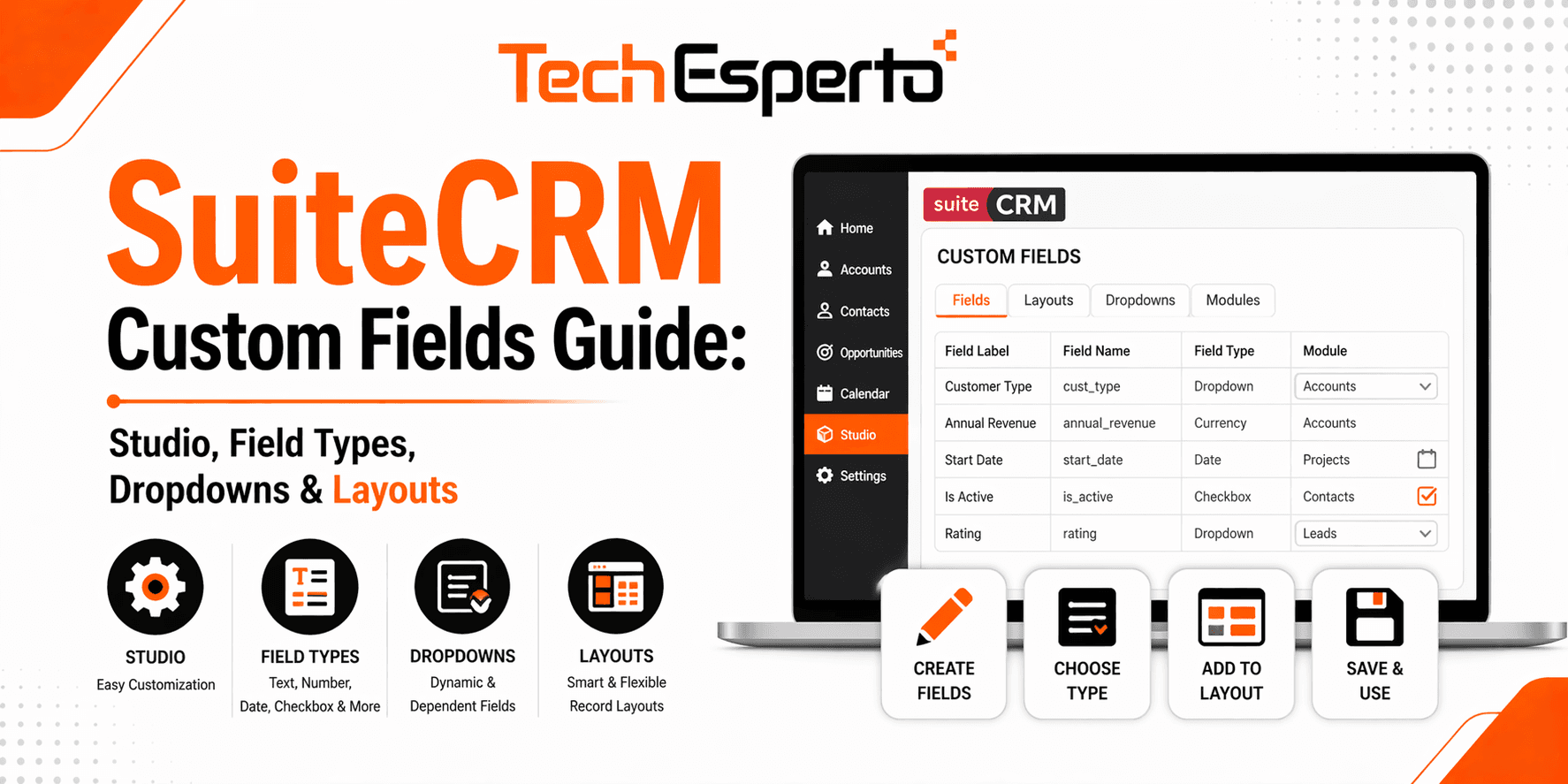
Out of the box, SuiteCRM includes a comprehensive set of fields for every module — name, email, phone, address, industry, and dozens more. But every business has unique data requirements. A real estate agency needs property fields. A healthcare provider needs patient ID fields. A manufacturer needs serial number fields. SuiteCRM’s Studio tool lets you add, edit, and organize custom fields without writing a single line of code.
This guide covers everything you need to know about customizing SuiteCRM’s data structure — from adding simple text fields to building dynamic dropdowns, creating relationships between modules, and arranging layouts for optimal usability.
Accessing Studio
Navigate to Admin (profile icon → Admin) → scroll to Developer Tools → click Studio. Studio displays a list of all customizable modules. Click any module to access its fields, layouts, subpanels, and relationships.
Studio modifications are upgrade-safe — changes are stored in the custom/ directory and survive SuiteCRM upgrades. This is the recommended approach for all field and layout customizations. Never modify core module files directly.
Field Types: Choosing the Right One
SuiteCRM offers 20+ field types. Choosing the right type matters — it affects data validation, searching, reporting, and workflow conditions. Here’s when to use each type:
Text-Based Fields
TextField: A single-line text input. Use for short, free-form data — company registration numbers, external IDs, nicknames, or any data that doesn’t fit a predefined list. Set a max length to prevent excessively long entries. Be cautious: text fields are harder to report on because users enter inconsistent data (“US” vs “USA” vs “United States”).
TextArea: A multi-line text box. Use for notes, descriptions, comments, or any field requiring longer free-form text. Not ideal for structured data that needs to be searchable or reportable.
URL: A text field formatted as a clickable hyperlink. Use for website URLs, LinkedIn profiles, or any external link you want users to access directly from the record.
Phone: A text field with phone formatting. Use for any phone number field — mobile, office, fax, WhatsApp number. SuiteCRM recognizes phone fields for click-to-call integrations.
Email: Dedicated email field type with validation. SuiteCRM uses email fields for campaign sends, workflow email actions, and email-to-contact matching during inbound email processing.
Selection Fields
DropDown: A single-select list. This is the most important field type for clean data. Use dropdowns instead of text fields whenever the possible values are predefined — Lead Source, Industry, Status, Priority, Region, Product Category. Dropdowns enable consistent data entry, accurate reporting, and reliable workflow conditions.
MultiSelect: A dropdown allowing multiple selections. Use for tags, product interests, skills, or any field where a record might have multiple applicable values. Note that multi-select fields are harder to report on and filter than single-select dropdowns.
RadioButton: Presents options as radio buttons instead of a dropdown. Use for fields with 2–4 options where you want all choices visible without clicking a dropdown — Priority (High/Medium/Low), Status (Active/Inactive), or Yes/No fields.
Dynamic DropDown: A dropdown whose options change based on the value of a parent dropdown. This is powerful for hierarchical categorization — for example, a “State” dropdown (Open/Closed) controlling which “Status” options appear (Open → New, In Progress, Awaiting Response; Closed → Resolved, Duplicate, Rejected). Requires configuring parent-child relationships between the dropdowns.
Numeric Fields
Integer: Whole numbers only. Use for quantities, scores, counts, or any field that should never contain decimals. SuiteCRM enforces numeric-only input and supports “from-to” range filtering in reports — useful for lead scoring, number of employees, or age ranges.
Decimal: Numbers with decimal places. Use for currency amounts not tied to the system currency, percentages, measurements, or any precise numeric value. Specify the decimal precision (2 for financial, 4 for scientific).
Currency: A decimal field linked to the system currency. Use for deal values, product prices, budget amounts, or any monetary field. SuiteCRM handles currency formatting and conversion automatically.
Date & Time Fields
Date: A date picker. Use for deadlines, expiry dates, start/end dates, or any date without a time component. Workflows can trigger actions based on date fields — “send email 7 days before contract_expiry_date.”
DateTime: A date and time picker. Use for appointments, scheduled events, or timestamps requiring both date and time precision.
Relationship Fields
Relate: Creates a lookup field that links to a record in another module. When a user clicks the relate field, a popup shows records from the target module to select from. Use for linking a Contact to a custom “Projects” module, or linking an Opportunity to a “Product Line” record.
Flex Relate: Like Relate but allows selecting a record from any module. The user first chooses the module, then selects the record. SuiteCRM’s built-in “Related To” field on Notes is a flex relate. Only one flex relate field is allowed per module.
Other Field Types
Checkbox: A boolean true/false field. Use for flags — “VIP Customer,” “Do Not Call,” “Requires Approval,” “Tax Exempt.”
Image: An image upload field. Use for contact photos, product images, or company logos.
IFrame: Embeds an external webpage inline within the record view. Niche use — embedding external dashboards, maps, or third-party tools.
Creating a Custom Field
Navigate to Admin → Studio → select a module (e.g., Contacts) → click Fields → click Add Field. Select the field type from the Data Type dropdown. Configure the field properties:
Field Name: The database column name (auto-generated from the label, suffixed with _c for custom fields). Once created, this cannot be changed.
Display Label: The label users see on forms and views. Can be changed anytime.
Default Value: An optional pre-filled value for new records. Useful for status fields (default to “New”) or source fields (default to “Website”).
Required Field: When checked, users cannot save a record without filling this field. Use sparingly — too many required fields slow down data entry and frustrate users.
Audit: When checked, changes to this field are logged in the record’s audit history. Enable for fields where change tracking matters — Status, Assigned User, Amount.
Max Size / Precision: Set character limits for text fields or decimal places for numeric fields.
Click Save to create the field. The field exists in the database but isn’t visible to users yet — you must add it to a layout.
Managing Dropdown Lists
Navigate to Admin → Studio → select a module → Dropdown Editor (or access globally via Admin → Dropdown Editor for shared lists).
Creating a New Dropdown List
Click Add to create a new list. Enter an Item Name (the database value — use lowercase, no spaces, underscores for separators) and a Display Label (what users see). Add all options, then set the display order by dragging or using Sort buttons. Optionally add a blank entry for “none selected.”
Best Practices for Dropdowns
Keep dropdown lists focused and manageable — 5–15 options is ideal. More than 25 options may indicate the field needs a different approach (search-based relate field or hierarchical dynamic dropdowns). Use consistent naming conventions for Item Names (lowercase_with_underscores). Set a meaningful default value for fields where most records share a common value. Include a “Not Set” or blank option for non-required dropdowns.
Editing Layouts
After creating fields, add them to the module’s views so users can see and interact with them.
Navigate to Admin → Studio → module → Layouts. SuiteCRM has four editable layouts:
EditView: The form users see when creating or editing a record. Add fields here for data entry.
DetailView: The read-only view showing record details. Should mirror EditView fields but can include additional calculated or display-only fields.
ListView: The searchable grid showing all records. Add important fields as columns for quick scanning. Keep it focused — 5–8 columns works best.
SearchView (Basic & Advanced): The search filters above the list view. Add fields that users commonly filter by — Status, Assigned User, Date Created, and any custom dropdown.
Adding Fields to Layouts
Open a layout (e.g., EditView). The layout displays as a grid of panels with fields arranged in two columns. Drag fields from the “Toolbox” panel on the left into the desired position in the layout. Remove fields by dragging them back to the Toolbox. Click Save & Deploy to make changes visible to users immediately.
Layout Tips
Group related fields together in panels — contact details in one panel, address in another, custom fields in a labeled panel. Place the most important fields near the top of the layout. Use filler/empty slots to create visual spacing. Don’t overload the EditView — too many fields slow down data entry. Fields that are important for viewing but not editing can be on DetailView only.
Creating Relationships
Relationships connect records across modules. Navigate to Admin → Studio → module → Relationships → Add Relationship.
One-to-Many: One parent record relates to multiple child records. Example: one Account has many Contacts. The child module gets a relate field; the parent module gets a subpanel.
Many-to-Many: Records on both sides can relate to multiple records on the other side. Example: Contacts can be linked to multiple Projects, and Projects can have multiple Contacts. Both modules get subpanels.
After creating a relationship, Studio automatically adds the subpanel to the parent module’s DetailView and the relate field to the child module’s EditView. Run Admin → Repair → Quick Repair and Rebuild after adding relationships.
For more complex relationship scenarios and custom module development, including Logic Hooks that trigger actions when relationships change, see our developer guides.
Adding Indexes to Custom Fields
Custom fields created through Studio don’t automatically get database indexes. If users frequently search or filter by a custom field, adding an index dramatically improves query performance. Indexes must be added through vardefs (code-level) since Studio doesn’t provide an indexing interface. This is a common SuiteCRM development task.
Common Mistakes to Avoid
Using text fields for structured data. If the possible values are known, use a dropdown. Text fields lead to inconsistent data (“High Priority” vs “high” vs “HP”) that breaks reporting and workflows.
Making too many fields required. Every required field adds friction to data entry. Start with minimal required fields and add requirements gradually based on actual user behavior.
Not adding fields to search views. If users need to filter by a field, it must be in the SearchView layout. A field that’s only on EditView and DetailView can’t be searched or filtered in list views.
Deleting fields with existing data. Deleting a Studio field permanently removes all data in that field from the database. Export the data first if it might be needed. Core SuiteCRM fields cannot be deleted through Studio.
Ignoring field-level security. Sensitive custom fields (salary, SSN, health data) should have field-level permissions restricting visibility to appropriate roles.
When to Go Beyond Studio
Studio handles most customization needs. But some requirements exceed its capabilities: calculated fields that derive values from other fields or related records, conditional field visibility (show/hide fields based on other field values), custom field types not available in Studio (color pickers, file uploads, maps), and complex validation rules beyond “required.” These require custom development using vardefs, Logic Hooks, and JavaScript customizations. As the Official SuiteCRM Professional Partner, TechEsperto handles both Studio-level and code-level customization.Contact us for a free consultation.