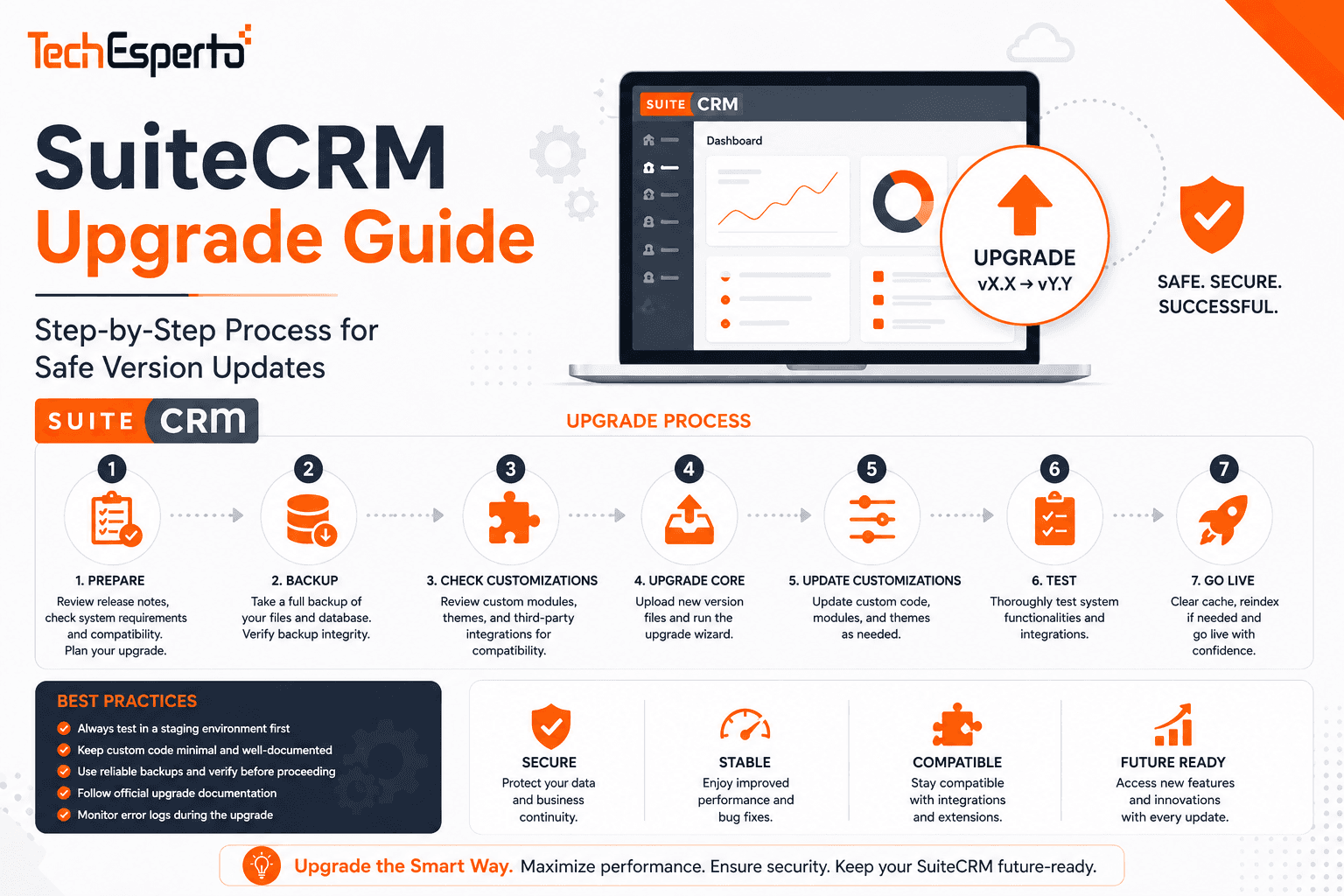
Upgrading SuiteCRM is essential for security patches, bug fixes, and new features — but it’s also the riskiest operation you’ll perform on a production CRM. A botched upgrade can break custom modules, disable workflows, corrupt data, or take your CRM offline entirely. The community forums are full of “upgrade broke everything” posts from admins who skipped steps.
This guide provides a comprehensive, step-by-step upgrade process that minimizes risk — covering pre-upgrade preparation, multiple upgrade methods, post-upgrade validation, and troubleshooting for every common issue.
Before You Start: Critical Rules
Rule 1: Never upgrade on a Friday. If something goes wrong, you want business days ahead of you for troubleshooting — not a weekend where your team can’t access CRM.
Rule 2: Never skip versions. SuiteCRM upgrades must follow a sequential path. You cannot jump from 7.10 to 7.14 directly — you must upgrade through each intermediate version (7.10 → 7.11 → 7.12 → 7.13 → 7.14). Skipping versions causes database schema conflicts and missing migrations.
Rule 3: Always test on staging first. Clone your production environment to a staging server and run the entire upgrade there first. Only proceed to production after staging succeeds completely.
Rule 4: Always back up before upgrading. A complete backup — database AND file system — is non-negotiable. If the upgrade fails, the backup is your only recovery path.
Step 1: Pre-Upgrade Preparation
Check Your Current Version
Navigate to Admin → About. Note your exact current version (e.g., 7.12.8). This determines which upgrade packages you need.
Check the Upgrade Path
Visit the SuiteCRM releases page and identify every version between your current version and your target version. Download each sequential upgrade package. For example, upgrading from 7.12 to 7.14 requires the 7.12-to-7.13 upgrade package AND the 7.13-to-7.14 upgrade package.
Verify Server Requirements
Each SuiteCRM version has specific PHP and MySQL requirements. Before upgrading, verify your server meets the target version’s requirements: PHP version (newer SuiteCRM versions require PHP 8.1+), MySQL/MariaDB version, required PHP extensions, and available disk space (at least 2x your current SuiteCRM directory size).
See our hosting guide for server requirement details.
Audit Your Customizations
Before upgrading, document every customization in your CRM: custom modules built with Module Builder, Logic Hooks in custom/Extension/ and custom/modules/, Studio customizations (custom fields, layouts, dropdowns), workflow rules (export as backup), third-party plugins installed via Module Loader, and theme customizations or custom themes.
Customizations placed correctly in the custom/ directory are upgrade-safe. Anything modified in core directories (modules/, include/, themes/) will be overwritten. If you find core modifications, move them to the custom/ directory before upgrading.
Disable Maintenance Tasks
Before starting, disable your cron job to prevent the Scheduler from running during the upgrade. Comment out the crontab entry temporarily. Also put SuiteCRM into maintenance mode if available, or notify users that the CRM will be offline during the upgrade window.
Step 2: Create Complete Backup
This is the most important step. Skip it and you have no recovery option.
Database Backup
Run mysqldump with –single-transaction (for non-blocking backup of InnoDB tables), –routines, and –triggers flags. Compress the output with gzip. Verify the backup file is not empty and has a reasonable file size matching your database.
File System Backup
Create a compressed archive of the entire SuiteCRM directory — including custom/, upload/, config.php, config_override.php, and .htaccess. Store backups in a separate location from the SuiteCRM server — S3, Google Cloud Storage, or a different server.
Verify Backups
Before proceeding, verify both backups: test the database backup by importing it to a test database and confirm record counts, and test the file backup by extracting to a test directory and confirming the file structure is complete.
See our comprehensive backup strategy guide for detailed procedures.
Step 3: Clone to Staging Environment
Create a staging environment that mirrors production — same PHP version, same MySQL version, same server configuration. Copy the production database and files to staging. Update config.php on staging with the staging database credentials and site URL. Verify staging works correctly before proceeding with the upgrade test.
Step 4: Run the Upgrade (Staging First)
SuiteCRM offers two upgrade methods:
Method A: Wizard Upgrade (Via Admin Panel)
Log into SuiteCRM as Administrator. Navigate to Admin → Upgrade Wizard. Upload the upgrade package ZIP file (the sequential upgrade, e.g., 7.12-to-7.13). The wizard performs pre-flight checks — verify all checks pass. If any checks fail (file permissions, PHP version, disk space), resolve them before proceeding. Click “Next” to execute the upgrade. The wizard extracts files, runs database migrations, and updates the codebase. This process can take 5–30 minutes depending on database size and server speed.
Important: Do not close the browser, navigate away, or let the session timeout during the upgrade process. A partially completed upgrade is the worst possible outcome.
Method B: Manual Upgrade (Command Line)
For large databases or when the Wizard times out, the command-line method is more reliable. Extract the upgrade package to a temporary directory. Copy the extracted files over the SuiteCRM installation directory (overwriting existing files). Navigate to your SuiteCRM URL in a browser — the system detects the new files and prompts for database upgrade. Follow the on-screen prompts to complete database migrations. Alternatively, run the upgrade script from the command line using PHP CLI for better timeout handling.
After Each Upgrade Step
Run Admin → Repair → Quick Repair and Rebuild. Execute the database repair queries if prompted (the repair page may show SQL statements that need to be run — click “Execute” to apply them). Verify the Admin → About page shows the correct new version number.
If upgrading through multiple versions (e.g., 7.12 → 7.13 → 7.14), repeat Step 4 for each sequential upgrade.
Step 5: Post-Upgrade Validation
After the upgrade completes on staging, verify everything works:
Core Functionality Checks
Log in as Administrator — confirm access to all modules. Open Contacts, Accounts, and Opportunities list views — verify data displays correctly. Create a test record in each major module — confirm save works. Edit an existing record — confirm fields populate and save correctly. Delete a test record — confirm deletion works. Run a search — confirm search results return. Check dashboards and reports — verify data renders.
Customization Checks
Verify all custom modules load and function correctly. Test Logic Hooks — create/edit records that should trigger hooks and verify the expected behavior. Verify workflows fire correctly — check the Scheduler runs and workflow actions execute. Test all integrations — email sync, calendar sync, QuickBooks, Twilio, and any custom API connections. Verify custom fields and layouts display correctly in Edit and Detail views. Check custom themes render properly — if using a custom theme, verify all CSS and templates work.
Email & Scheduler Checks
Re-enable the cron job. Verify Admin → Schedulers shows recent “Last Ran Successfully” timestamps. Send a test email from a Contact record. Check that inbound email accounts are importing correctly.
Plugin Checks
Verify all third-party plugins function. Some older plugins may not be compatible with newer SuiteCRM versions — check the plugin vendor’s compatibility notes. If a plugin breaks, contact the vendor for an updated version or consider a replacement from the SuiteCRM Store.
Step 6: Upgrade Production
Once staging validation passes completely, repeat the same process on production: disable cron, create fresh backup, run the upgrade, execute Quick Repair and Rebuild, run post-upgrade validation checks, and re-enable cron.
Schedule production upgrades during low-usage hours (evenings or weekends). Notify all users of the maintenance window in advance.
Troubleshooting Common Upgrade Issues
“Upload file limit exceeded” in Upgrade Wizard. The upgrade package exceeds PHP’s upload_max_filesize. Increase upload_max_filesize and post_max_size in php.ini to 64M or higher. Use the manual command-line method as an alternative.
Wizard timeout during upgrade. Large databases can exceed PHP’s max_execution_time. Increase max_execution_time to 600 or higher. Or use the command-line upgrade method which isn’t subject to browser timeouts.
White screen after upgrade. Usually a PHP error being suppressed. Check SuiteCRM’s suitecrm.log and your web server’s error log for details. Common causes: PHP version incompatibility, missing PHP extensions, or file permission issues.
Custom modules not loading. Run Admin → Repair → Quick Repair and Rebuild. If the repair page shows SQL queries, execute them. Check that custom module files are still in the custom/ directory and haven’t been accidentally overwritten.
Workflows stopped firing. Verify the cron job is re-enabled and running. Check Admin → Schedulers — the “Run Workflow Tasks” job must be Active. Run Quick Repair and Rebuild.
Theme looks broken. Custom CSS or template files may conflict with updated core files. Clear the browser cache. Run Quick Repair and Rebuild. Check your custom theme files for compatibility with the new version’s HTML structure.
Database errors after upgrade. The Quick Repair page may show “missing columns” or “table differences.” Execute the suggested SQL queries to align the database schema with the new version’s expectations.
When to Get Professional Help
Upgrades involving multiple version jumps (e.g., 7.8 → 7.15), heavily customized instances with dozens of Logic Hooks and custom modules, large databases (1M+ records) where timeouts and migration scripts need careful management, production CRMs where downtime directly impacts revenue, and upgrades from SuiteCRM 7 to SuiteCRM 8 (a complete platform migration, not a simple upgrade) are all scenarios where professional SuiteCRM support significantly reduces risk and downtime.
As the Official SuiteCRM Professional Partner, TechEsperto handles SuiteCRM upgrades for businesses worldwide — including pre-upgrade audits, staging environment setup, upgrade execution, validation, and post-upgrade monitoring.Contact usfor upgrade assistance.