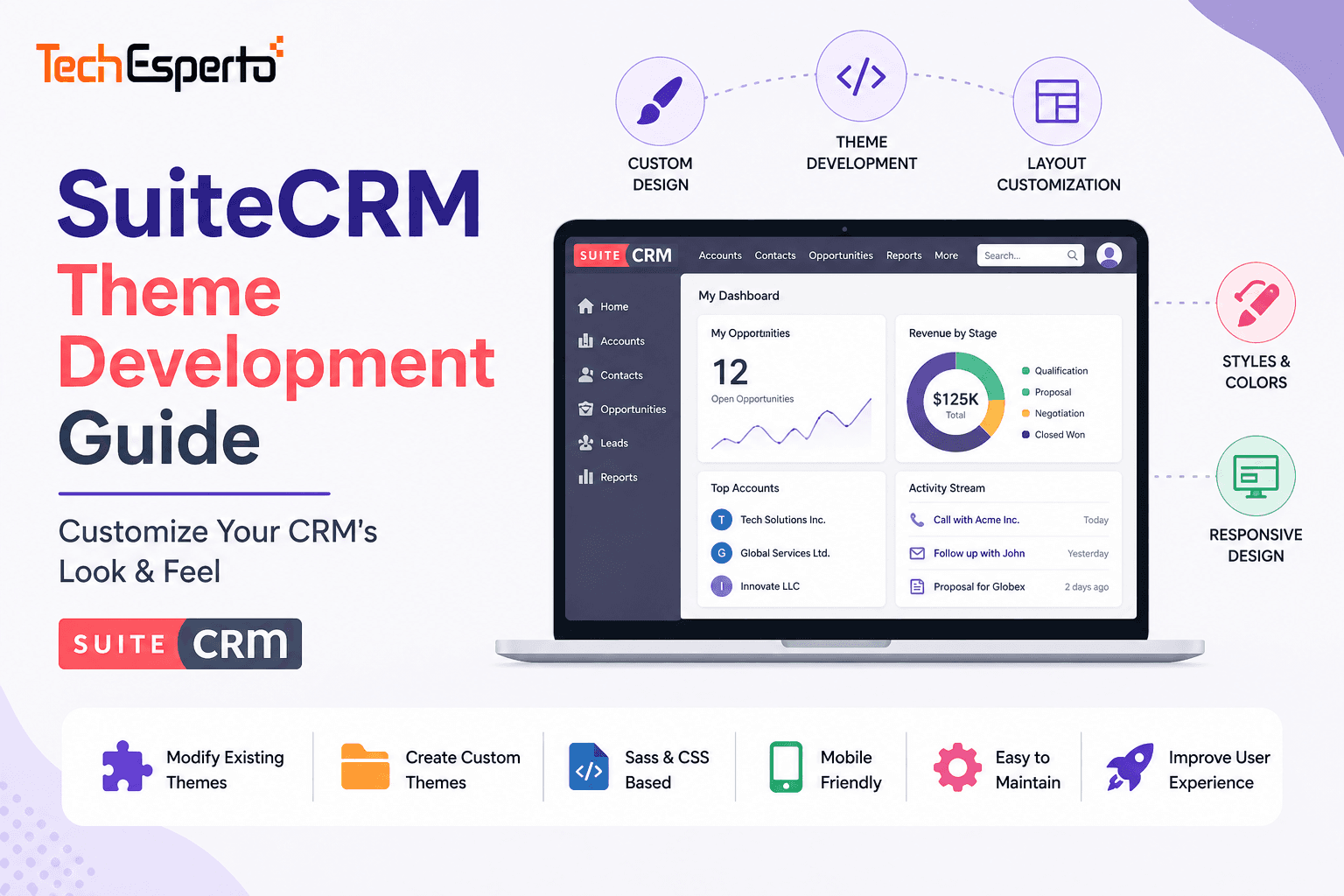
First impressions matter — even with internal tools. A SuiteCRM instance that looks like default 2015 enterprise software gets less adoption than one that matches your brand identity with modern colors, clean typography, and a professional feel. Users who enjoy their CRM’s interface use it more consistently, enter better data, and resist less during onboarding.
SuiteCRM’s theme system lets you transform the visual experience without modifying core functionality. You can change everything from colors and logos to navigation layout and form styling — all in an upgrade-safe manner that survives version updates.
This guide covers how to build a custom SuiteCRM theme from scratch, modify existing themes, and follow best practices for maintainable, upgrade-safe theme development.
Understanding SuiteCRM Themes (Version 7)
SuiteCRM 7 uses a theme system based on CSS, Smarty templates, and PHP configuration. Themes control visual presentation — colors, fonts, spacing, icons, and layout — while leaving business logic untouched.
Default themes: SuiteCRM 7 ships with the SuiteP theme as default — a clean, flat design that replaced the older Sugar-era themes. SuiteP is the foundation most custom themes build upon.
Theme location: Themes live in the themes/ directory. SuiteP is at themes/SuiteP/. Each theme contains CSS files for styling, images for logos and icons, template overrides (TPL files) for layout changes, and a themedef.php file defining theme metadata.
The custom/ directory: As with all SuiteCRM customization, upgrade-safe theme modifications go in the custom/ directory — specifically custom/themes/SuiteP/ (or your custom theme name). Files here override the equivalent files in the core theme directory without modifying originals.
Quick Customization: CSS Overrides
The fastest way to customize SuiteCRM’s appearance without building a full theme is CSS overrides — adding custom CSS that overwrites default styles.
Method 1: custom.css File
Create a file at custom/themes/SuiteP/css/custom.css. SuiteCRM automatically loads this file after the theme’s default CSS, meaning your rules override the defaults. Add any CSS rules to change colors, fonts, spacing, or layout.
Common quick customizations include changing the primary navigation bar color to match your brand, updating link colors and hover states, modifying the login page background, adjusting font family and sizes across the interface, styling specific module headers with distinct colors, and hiding elements you don’t want users to see (like unused sidebar items).
Method 2: Admin Theme Settings
Navigate to Admin → System Settings → User Interface. SuiteCRM provides basic theme configuration: company logo upload (replaces the SuiteCRM logo in the header), login page logo, and theme selection (if multiple themes are installed).
For logo replacement, upload your company logo at Admin → System Settings. The recommended dimensions match your header height — typically 212×40 pixels for the header logo and 340×40 pixels for the login page logo. SuiteCRM accepts PNG, JPG, and GIF formats. PNG with transparency works best for clean logo rendering on colored backgrounds.
Building a Custom Theme from Scratch
For comprehensive visual changes, create a standalone custom theme.
Step 1: Create the Theme Directory
Create a new directory at custom/themes/YourThemeName/. Inside it, create this structure: css/ for your stylesheet files, images/ for logos, icons, and backgrounds, tpls/ for any Smarty template overrides, and themedef.php to register the theme.
Step 2: Register the Theme
Create themedef.php at custom/themes/YourThemeName/themedef.php. This file defines metadata that SuiteCRM uses to recognize your theme: a display name, description, and the parent theme it inherits from (typically SuiteP). By setting SuiteP as the parent, your theme inherits all of SuiteP’s styles and templates — you only override what you want to change.
Step 3: Create Your Stylesheet
Create css/style.css in your theme directory. This is where all visual customization lives. Start by importing the parent theme’s styles, then add your overrides. Focus on these key areas:
Brand colors. Override the primary color (navigation bar, buttons, links), secondary color (accents, hover states), and background colors (sidebar, content area, forms).
Typography. Change the font-family to your brand font (ensure web-safe fonts or include @font-face declarations for custom fonts). Adjust font sizes for headings, body text, and form labels.
Navigation. Style the top navigation bar (background, text color, hover effects), module tabs (active state, hover state), and the sidebar menu (background, link colors, icons).
Forms and detail views. Style form panels (borders, backgrounds, spacing), field labels and inputs, and button styles (primary, secondary, danger).
Login page. Create a branded login experience with your company logo, brand colors, and optional background image.
Step 4: Override Templates (Advanced)
For layout changes beyond CSS (moving elements, adding sections, changing HTML structure), override Smarty template files. Copy the original TPL file from themes/SuiteP/tpls/ to custom/themes/YourThemeName/tpls/ and modify the copy. Common template overrides include the header template (adding a company tagline or custom navigation), the footer template (adding support contact info or version number), the login page template (complete redesign of the login experience), and the sidebar template (custom dashboard widgets or quick links).
Step 5: Activate Your Theme
Navigate to Admin → System Settings → User Interface → Default Theme. Select your theme from the dropdown. Users can also individually select themes from their profile preferences if multiple themes are available.
After activation, run Admin → Repair → Quick Repair and Rebuild to clear cached CSS and templates.
Responsive Design Considerations
SuiteCRM 7’s SuiteP theme includes basic responsive behavior, but mobile optimization often needs improvement. When building a custom theme, add CSS media queries for common breakpoints: tablets (768px–1024px) for adjusted navigation and two-column layouts, and mobile phones (below 768px) for single-column layouts, stacked form fields, and hamburger navigation.
For teams that need robust mobile access, TechEsperto’s SuiteCRM Mobile App provides a native mobile experience purpose-built for phone and tablet use — a better approach than trying to make the desktop CRM fully responsive.
SuiteCRM 8 Theming
SuiteCRM 8 uses an Angular frontend with a completely different theming approach. Instead of CSS/Smarty overrides, version 8 uses SCSS variables and Angular component styling. The theming architecture is more structured: modify SCSS variables for colors and typography, override Angular component templates for layout changes, and build separate CSS modules for specific views.
Because the version 8 theme ecosystem is still maturing, most custom theme work in 2026 targets SuiteCRM 7. See our SuiteCRM 7 vs 8 comparison for version guidance.
Pre-Built Themes from the SuiteCRM Store
If custom theme development isn’t in your budget, pre-built themes from the SuiteCRM Store provide instant visual upgrades. TechEsperto’s SuiteCRM Theme offers a modernized interface with clean design, improved navigation, and responsive layout — installable via Module Loader in minutes.
Pre-built themes are the fastest path to a better-looking CRM. Install via Admin → Module Loader, upload the theme ZIP file, install, and activate through System Settings. No development required.
Theme Development Best Practices
Never modify core theme files. All customizations go in custom/themes/ or custom/include/. Core files in themes/ are overwritten during upgrades.
Inherit from SuiteP. Don’t duplicate the entire SuiteP theme. Set SuiteP as parent and override only what you need. This ensures you benefit from future SuiteP improvements and security fixes.
Use CSS variables for brand colors. Define your brand colors as CSS custom properties at the top of your stylesheet. Reference these variables throughout — changing the brand color later means updating one line, not fifty.
Test across browsers. SuiteCRM is used in Chrome, Firefox, Edge, and Safari. Test your theme in all major browsers. IE11 support is generally no longer required.
Test with real data. Themes that look great with 5 contacts can break with 500. Test with realistic data volumes — long company names, multi-line addresses, and large subpanels.
Document your customizations. Create a README file listing every CSS override and template change. Future developers (or future you) will thank you.
Version control your theme. Store your custom theme in Git. Track every change so you can roll back if something breaks.
When to Get Professional Help
Theme development sits at the intersection of design and SuiteCRM architecture. Professional SuiteCRM development is recommended when you need a complete brand identity redesign (not just color changes), custom login page with your company branding, responsive design optimization for tablet and mobile users, template-level layout changes (moving modules, restructuring navigation), and multi-theme deployment (different themes for different user groups).
As the Official SuiteCRM Professional Partner and developers of a popular SuiteCRM theme, TechEsperto has deep expertise in CRM visual customization.Contact usfor theme development.