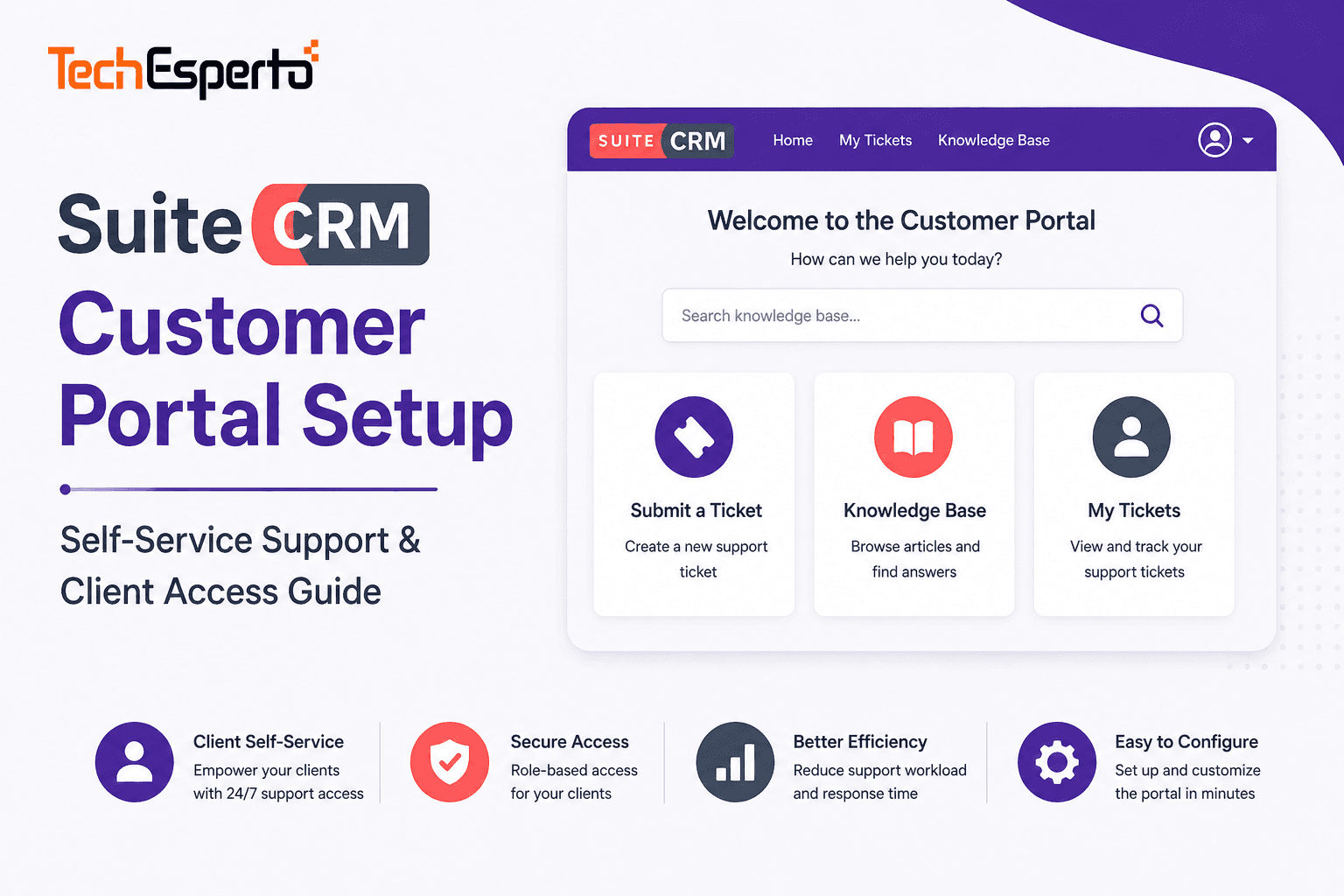
Your customers shouldn’t need to call or email every time they want to check a support ticket status, review a quote, or find an answer to a common question. A self-service customer portal gives them 24/7 access to their own data — reducing support workload, improving customer satisfaction, and freeing your team to focus on complex issues that actually need human attention.
SuiteCRM includes a built-in Customer Portal at no additional cost. Customers log in through a branded web interface, submit and track support cases, browse the knowledge base, review quotes, and access their account information — all powered by SuiteCRM’s data with Security Groups ensuring they only see their own records.
This guide covers how to set up, configure, customize, and extend SuiteCRM’s Customer Portal.
What the Customer Portal Provides
Out of the box, SuiteCRM’s portal gives external users (your customers) access to:
Case Management. Customers create new support cases directly from the portal — describing the issue, selecting a category, attaching files. They track the status of every case they’ve submitted (Open, In Progress, Pending, Resolved) without calling your support team. When your team updates a case in SuiteCRM, the customer sees the update in real-time through the portal.
Knowledge Base. Published knowledge base articles are searchable from the portal. Customers find answers to common questions before submitting a case — deflecting tickets and reducing support volume. Articles can include text, images, and file attachments.
Quotes. Customers view quotes sent to them and can approve or request changes through the portal. This eliminates the email back-and-forth of “here’s the quote PDF, please reply with approval” — the entire approval workflow happens in one trackable system.
Account Information. Customers see their account details, contact information, and can request updates — reducing administrative calls to your team.
Step-by-Step Portal Setup
Step 1: Enable the Portal
Navigate to Admin → System Settings. Find the “Portal” section. Enable the portal by checking the activation box. Set the portal URL — this is the web address your customers will use to access the portal (typically portal.yourcompany.com or yourcompany.com/portal).
Step 2: Create Portal Users
Portal users are separate from CRM users — they’re your customers, not your staff. Each portal user is linked to a Contact record in SuiteCRM.
Navigate to Admin → Portal User Management (or the Portal Users module). Create a new portal user: link to an existing Contact record, set a username (typically the customer’s email address), set a temporary password (the customer will change on first login), and set the portal user status to Active.
Alternatively, enable self-registration so customers can create their own portal accounts from the login page. Self-registration links the new portal user to an existing Contact record based on email address matching, or creates a new Contact if none exists.
Step 3: Configure Portal Modules
Choose which SuiteCRM modules are accessible through the portal. Navigate to Admin → Portal Configuration (or the portal settings panel). Enable or disable modules for portal visibility: Cases (recommended — the primary portal use case), Knowledge Base (recommended — self-service deflection), Quotes (optional — for sales-facing portals), and Bugs (optional — for software/IT companies tracking issues).
For each enabled module, configure which fields are visible to portal users and which are editable. Customers should see case status and resolution notes but not internal-only fields like escalation flags or internal comments.
Step 4: Configure Email Notifications
Set up automated email notifications so customers know when to check the portal: when a new case is created (confirmation email with case number), when case status changes (update notification), when an agent adds a note to the case (new response notification), and when a case is resolved (resolution email with satisfaction survey link).
Configure these through SuiteCRM’s workflow automation — create workflows on the Cases module that trigger email templates when status or comments change. Include a portal login link in every notification so customers can click through to view full details.
Step 5: Brand the Portal
The default portal has minimal styling. Customize it to match your brand: upload your company logo in the portal configuration, apply brand colors through CSS customization (the portal uses its own CSS files in the portal/ directory), add your company name and tagline to the portal header, and customize the login page with your branding and a welcome message.
For advanced branding, modify the portal’s template files in the custom/ directory — following the same upgrade-safe practices as CRM theme development.
Step 6: Set Up Knowledge Base
Populate the Knowledge Base before launching the portal. Navigate to the Knowledge Base module in SuiteCRM. Create articles organized by category: Getting Started guides, FAQ answers for common questions, How-To articles for product/service usage, Troubleshooting guides for known issues, and Policy documents (returns, SLAs, terms).
Each article has a status (Draft, In Review, Published). Only Published articles appear in the portal. Set article expiry dates for time-sensitive content so outdated information is automatically hidden.
Organize articles into categories that make sense for your customers — not your internal structure. A category called “Billing Questions” is more useful to customers than “Finance Department Processes.”
Step 7: Test Before Launch
Create a test portal user account. Log in through the portal URL. Submit a test case — verify it appears in SuiteCRM’s Cases module. Update the case from within SuiteCRM — verify the update appears in the portal. Search the Knowledge Base — verify published articles are findable. Review a quote through the portal — verify the approval workflow works. Test email notifications — verify customers receive alerts at each status change.
Fix any issues before announcing the portal to customers.
Advanced Portal Customization
Custom Modules in the Portal
SuiteCRM’s portal can expose custom modules — not just the default Cases, KB, and Quotes. For example, an insurance company could expose a Policies module so customers view their policy details and renewal dates. A field service company could expose a Work Orders module so customers track service appointment status. A manufacturing company could expose an Orders module so customers track production and delivery status.
Custom portal modules require development to configure the portal views, field visibility, and access controls — but the capability is powerful for industry-specific self-service.
Portal API for Custom Frontends
If SuiteCRM’s built-in portal doesn’t meet your design or functionality needs, you can build a completely custom portal frontend using SuiteCRM’s REST API. The API provides all the data — your custom frontend provides the experience. This approach lets you build a portal that matches your website’s design exactly, embed portal functionality into your existing customer-facing application, create a mobile-responsive portal optimized for phone and tablet access, and add features like live chat, file uploads, or payment processing alongside CRM data.
Custom portal development is a common SuiteCRM integration project — TechEsperto builds custom portals tailored to specific business requirements.
SuiteCRM 8 Portal
SuiteCRM 8 includes a redesigned portal with improved UI and API-first architecture. The Angular-based frontend provides a more modern customer experience. However, customization approaches differ from version 7’s portal. If you’re considering a portal deployment on SuiteCRM 8, consult with a SuiteCRM partner familiar with both versions.
Portal Use Cases by Industry
IT & Software Companies. Customers submit bug reports and feature requests, track ticket status, and browse a troubleshooting knowledge base. Reduces support email volume by 40–60%.
Professional Services. Clients view project status, approve quotes and proposals, access shared documents, and submit change requests. Improves client communication transparency.
Healthcare. Patients access appointment information, submit inquiries, and browse health resource articles — while maintaining data security through portal access controls.
Manufacturing & Distribution. Customers track order status, submit warranty claims, browse product documentation, and request spare parts. See our manufacturing CRM guide for examples.
Managed Services & Support. Clients with support packages submit and track tickets, view SLA compliance, and access runbooks and documentation.
Benefits of Self-Service Portal
Reduced support costs. Every question answered by the Knowledge Base is a ticket your team doesn’t handle. Organizations report 30–50% reduction in inbound support volume after launching a portal with a well-populated KB.
24/7 availability. Customers check case status, browse KB articles, and submit requests at any time — not just during business hours.
Improved customer satisfaction. Customers who can self-serve report higher satisfaction than those who must wait for email or phone responses. Instant access to information beats “we’ll get back to you in 24 hours.”
Better data quality. Portal-submitted cases include structured fields (category, priority, description) instead of the unstructured text of email-submitted requests. This enables accurate routing and reporting.
Audit trail. Every portal interaction is logged in SuiteCRM — case submissions, status views, KB article reads, and quote approvals. Complete visibility into customer engagement.
When to Get Professional Help
Portal setup is straightforward for basic Cases + KB functionality. Professional SuiteCRM consulting is recommended when you need custom modules exposed through the portal, advanced branding that matches your website’s design system, custom portal frontend built on SuiteCRM’s API, integration between portal and external systems (payment gateways, document signing), and complex access control rules (multi-tier portal access based on customer level or subscription).
As the Official SuiteCRM Professional Partner, TechEsperto builds customer portals for businesses across industries.Contact usfor a free portal consultation.