Google Workspace is the daily operating system for millions of businesses — Gmail for email, Google Calendar for scheduling, Google Drive for documents, and Google Contacts for address books. When your CRM doesn’t connect to these tools, your team lives in two disconnected worlds: customer data in SuiteCRM and daily communication in Google.
This disconnect means emails to customers aren’t logged in CRM, meetings scheduled in Google Calendar don’t appear on contact records, documents shared via Drive aren’t linked to accounts, and contacts added in Gmail don’t sync to the CRM database.
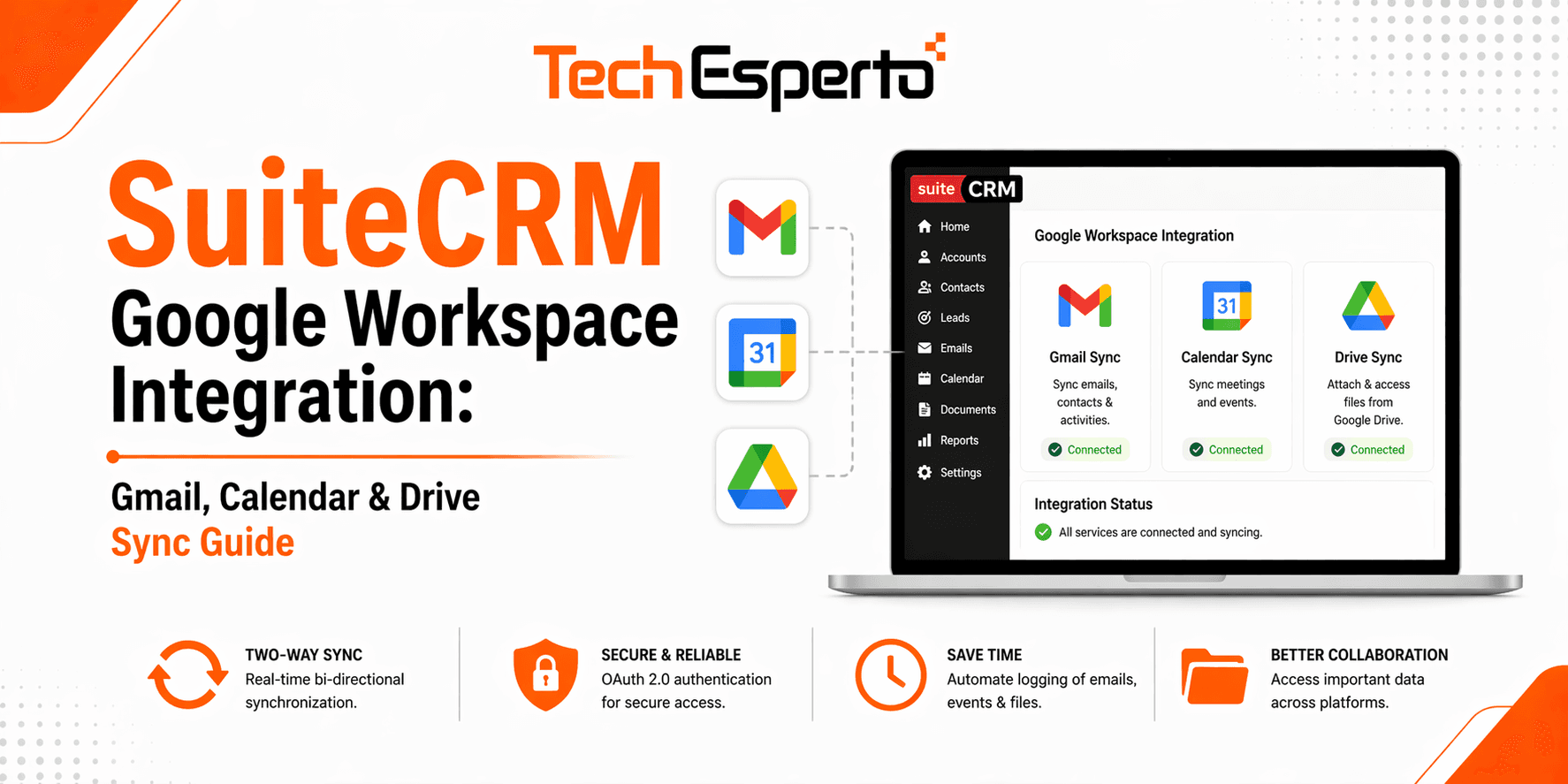
SuiteCRM integrates with the full Google Workspace suite — Gmail, Calendar, Contacts, and Drive — through built-in features, plugins from the SuiteCRM Store, and custom API integrations. This guide covers how to connect each Google service and the best approach for your team.
Google Calendar Sync
Calendar integration is the most requested Google Workspace feature for SuiteCRM — and it’s built into the platform.
Built-in Calendar Sync (SuiteCRM 7.11+)
SuiteCRM 7.11 and newer includes native bi-directional Google Calendar synchronization. When configured, meetings created in SuiteCRM appear on your Google Calendar, and events created in Google Calendar sync back to SuiteCRM. Changes on either side update the other automatically.
How it works: SuiteCRM connects directly to Google’s Calendar API. Your data doesn’t pass through any third party — it flows directly between your SuiteCRM server and Google’s servers. The SuiteCRM server needs internet access but doesn’t need to be publicly accessible. Sync runs on a Scheduler job without user intervention.
Setup steps: Create OAuth 2.0 credentials in Google Cloud Console (APIs & Services → Credentials → Create OAuth Client ID). Enter the Client ID and Client Secret in SuiteCRM’s Admin → Google Calendar Settings. Each user authorizes their Google account through their SuiteCRM profile. The Scheduler handles ongoing synchronization automatically.
SuiteCRM 7.15 update: Version 7.15 replaced the legacy Google Calendar sync with a new Calendar Sync framework. If you’re upgrading from an earlier version, existing configurations migrate automatically. The new framework is more robust and supports additional calendar services beyond Google.
Plugin-Based Calendar Sync
For more control or additional features, the SuiteCRM Store offers Google Calendar sync plugins with capabilities beyond the built-in feature: sync Calls and Tasks (not just Meetings) to Google Calendar, date-range-based filtering (only sync events from specific periods), detailed sync logs for troubleshooting, manual sync triggers alongside automatic scheduling, and multiple Google account support per user.
Gmail Integration
Email Archiving via IMAP/SMTP
The most fundamental Gmail integration uses SuiteCRM’s built-in email configuration. Configure Gmail’s IMAP (imap.gmail.com, port 993, SSL) for inbound email and SMTP (smtp.gmail.com, port 587, TLS) for outbound email. This allows SuiteCRM to send emails through your Gmail account and receive/archive incoming emails linked to Contact and Lead records.
For detailed setup including App Passwords and OAuth 2.0 authentication, see our SuiteCRM email configuration guide.
Gmail Sidebar Add-on
For teams that live in Gmail, a sidebar add-on brings CRM data directly into the inbox. The CRM Assistant for Gmail (available on Google Workspace Marketplace) connects SuiteCRM to Gmail with these features: when you open an email, the sidebar shows the sender’s CRM record (Contact, Lead, or Account) with full history. You can archive emails to SuiteCRM with one click — linking the email to the relevant Contact. Create new Leads or Contacts directly from incoming emails without leaving Gmail. Add notes linked to CRM records while reading email. Search SuiteCRM records from within Gmail.
This keeps reps in Gmail (where they already work) while ensuring every customer interaction is captured in the CRM.
Automatic Email Logging via Group Mailbox
For comprehensive email archiving without relying on individual users, configure a Group Inbound Email account in SuiteCRM that monitors a shared mailbox (e.g., sales@yourcompany.com). SuiteCRM automatically imports all incoming emails and matches them to existing Contacts, Leads, or Accounts based on email address. This creates a complete communication audit trail independent of individual users’ email habits.
Google Contacts Sync
Keeping contacts synchronized between Google Contacts and SuiteCRM eliminates duplicate data entry and ensures your phone’s contact list reflects your CRM database.
Plugin-Based Contact Sync
The GSync plugin from the SuiteCRM Store provides bi-directional Google Contacts synchronization: contacts created in SuiteCRM sync to Google Contacts with field mapping (name, email, phone, address), contacts added in Google Contacts sync back to SuiteCRM as new Contact records, updates on either side propagate to the other automatically, and field mapping is configurable — map SuiteCRM custom fields to Google Contact fields.
This means when a sales rep adds a new prospect’s number to their phone’s Google Contacts, it appears in SuiteCRM. When an admin updates a contact’s email in SuiteCRM, the change reflects on every team member’s phone.
Import from Google Contacts
SuiteCRM also supports one-time imports from Google Contacts for person-type modules (Contacts, Leads, Targets). This is useful for initial CRM population — import your existing Google Contacts database into SuiteCRM, then use ongoing sync to keep them updated.
Google Drive Integration
Plugin-Based Drive Sync
Google Drive integration links documents stored in Drive to SuiteCRM records. The GSync plugin and other Drive integration modules from the SuiteCRM Store provide the ability to attach Google Drive files to any SuiteCRM record (Contact, Account, Opportunity, Case), browse and select Drive files from within SuiteCRM’s interface, and automatically organize uploaded documents into folder structures mirroring your CRM data.
This eliminates the “where did we save that proposal?” problem — documents are linked to the CRM record they belong to, accessible from both SuiteCRM and Google Drive.
Custom Drive Integration via API
For businesses needing deeper integration, SuiteCRM’s REST API combined with Google Drive’s API enables automated document workflows: when an Opportunity reaches “Proposal” stage, a workflow creates a folder in Drive from a proposal template, populated with deal data. When a contract is signed, the signed document is automatically linked to the Account record.
Setting Up Google Cloud Console Credentials
Most Google Workspace integrations require OAuth 2.0 credentials from Google Cloud Console. Here’s the process:
Go to console.cloud.google.com. Create a new project (or select existing). Enable the required APIs — Google Calendar API, Gmail API, Google Drive API, People API (for Contacts). Navigate to APIs & Services → Credentials → Create Credentials → OAuth 2.0 Client ID. Select “Web Application” as the application type. Add the authorized redirect URI provided by your SuiteCRM plugin or configuration page. Note the Client ID and Client Secret — enter these in SuiteCRM’s configuration.
For Google Workspace (business) accounts, your Workspace admin may need to approve the OAuth consent screen or allow the application in the admin console.
This setup is identical whether you’re connecting Calendar, Gmail, Contacts, or Drive — one set of credentials covers all Google APIs. For detailed OAuth configuration help, see our email OAuth guide.
Integration Architecture Options
Option 1: Plugin-Based (Recommended for Most)
Install SuiteCRM Store plugins for Calendar, Contacts, and Drive sync. Configure OAuth credentials once. Each user authorizes their Google account. Sync runs automatically via Scheduler.
Pros: Fast setup, no custom development, tested and maintained by plugin developers. Best for: Most businesses wanting reliable Google integration without development effort.
Option 2: Custom API Integration
Build custom integrations using SuiteCRM’s REST API and Google’s APIs. Logic Hooks trigger Google API calls on CRM events.
Pros: Unlimited flexibility — sync any data, trigger any action, build custom workflows. Best for: Businesses with unique requirements that plugins can’t handle.
Option 3: Middleware (Zapier/Make)
Use Zapier or Make.com to bridge SuiteCRM and Google Workspace with webhook-based automation.
Pros: No code required. Fast to set up for simple one-directional syncs. Cons: Recurring monthly cost, latency, limited to simple field mapping. Best for: Very small teams with simple sync needs.
Troubleshooting Common Issues
“Invalid grant” or “Token expired” errors. OAuth tokens expire. Re-authorize the Google connection from the user’s SuiteCRM profile. If the issue persists, regenerate OAuth credentials in Google Cloud Console.
Calendar events not syncing. Verify the Google Calendar Sync Scheduler job is active and running. Check the user has authorized their Google account. Ensure the SuiteCRM server has outbound internet access to reach Google’s API endpoints.
Emails not archiving from Gmail. Verify IMAP is enabled in Gmail Settings (Forwarding and POP/IMAP). Ensure you’re using an App Password or OAuth 2.0 — regular Gmail passwords don’t work. Check that the “Check Inbound Mailboxes” Scheduler job is active.
Contacts syncing duplicates. The sync plugin may not have duplicate detection configured. Enable matching by email address to prevent creating duplicate contacts during sync.
Drive files not linking. Verify the Google Drive API is enabled in your Google Cloud Console project. Check that the OAuth scope includes Drive permissions.
Best Practices
Use one set of Google Cloud Console credentials for all integrations (Calendar, Gmail, Contacts, Drive). This simplifies management and reduces configuration points.
Authorize users individually. Each user authorizes their own Google account — don’t use a shared credential for all users. This ensures proper ownership and access control.
Monitor sync status weekly. Check Admin → Schedulers for recent sync timestamps. Review sync logs (provided by plugins) for errors or failures.
Configure sync direction carefully. Not all data should sync both ways. Contacts might sync bi-directionally, but Calendar events might only sync from SuiteCRM to Google (if you don’t want personal Google events appearing in CRM).
Set appropriate sync frequency. Calendar and email sync every 5 minutes is usually sufficient. Contact sync every 15–30 minutes avoids unnecessary API calls.
When to Get Professional Help
Google Workspace integration touches OAuth authentication, API configuration, Scheduler setup, and user authorization — multiple systems that need to work together. Common scenarios where professional SuiteCRM consulting saves time include OAuth setup for Google Workspace business accounts with admin restrictions, complex sync rules (selective sync by record type, date range, or ownership), custom Drive automation (template-based document generation on CRM events), and troubleshooting sync failures across multiple users.
As the Official SuiteCRM Professional Partner, TechEsperto configures Google Workspace integration as part of every implementation.Contact us for setup support.